
Download the device driver from here. Unzip and install it. Then plug in the motion platform. Only plug in one device for now if you have more than one.
Download SimTools V3 from here and install it.
Once the SimTools is installed, open it although It may take a while to open. Please follow these instructions to get it set up. It shouldn’t take too long!
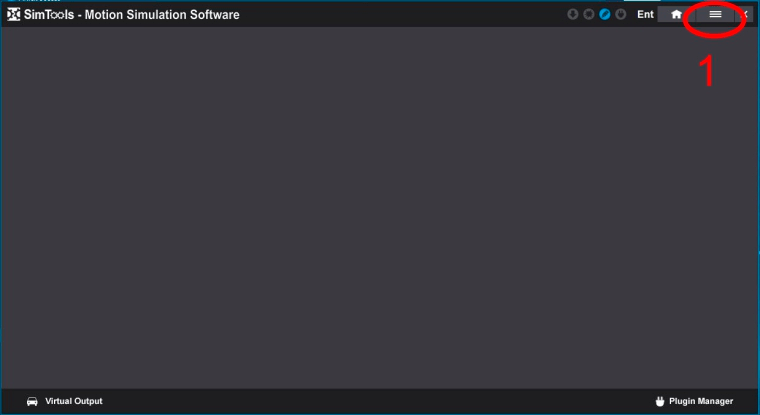
1. Click on the ‘hamburger’ and select the ‘Registration’ tab.
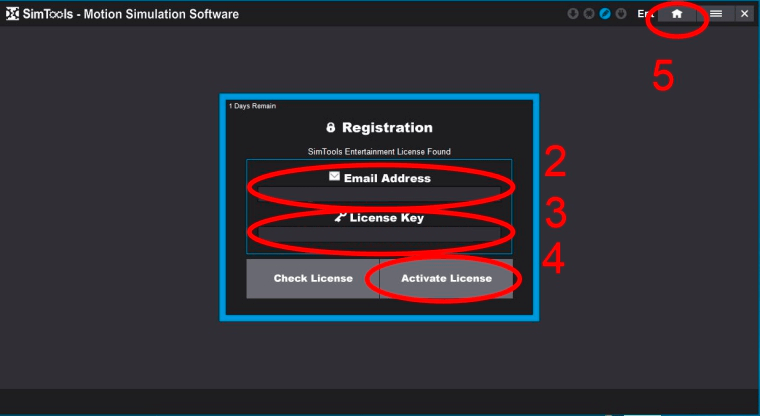
2. Enter the email address you have been sent.
3. Enter the license key you have been sent.
4. Press ‘Activate License’.
5. Click on the ‘Home’ button.
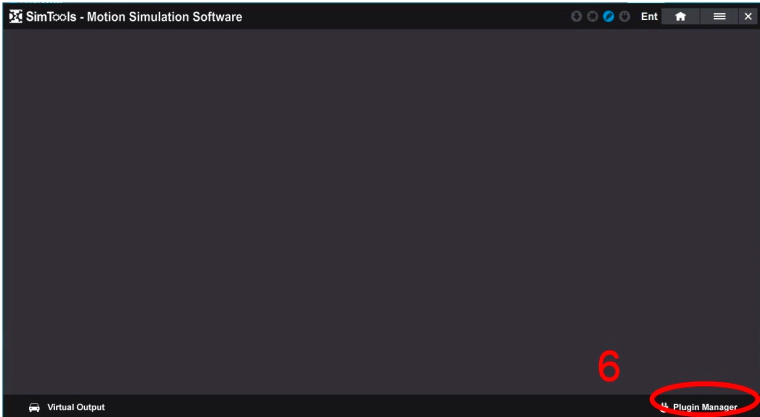
6. Click on the ‘Plugin Manager’ button.
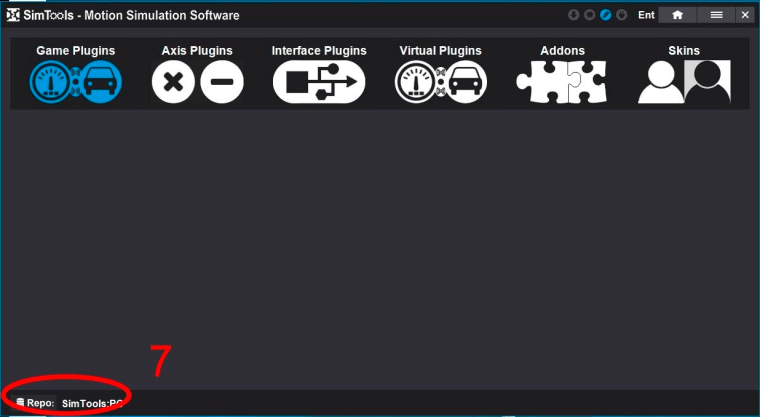
7. Click on the ‘Repo’ button.
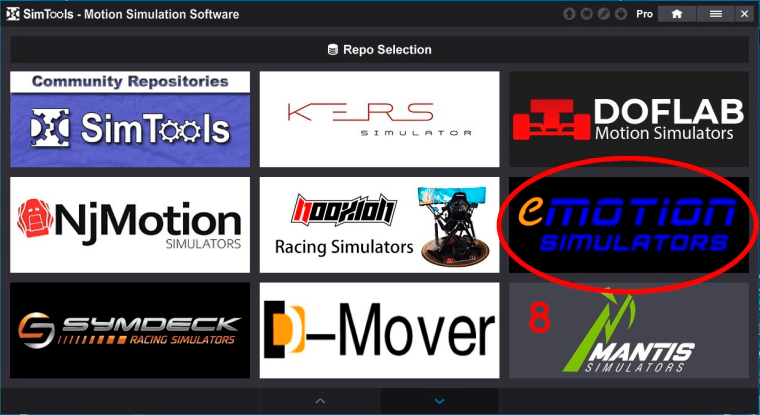
8. Select the eMotion Simulators repository.
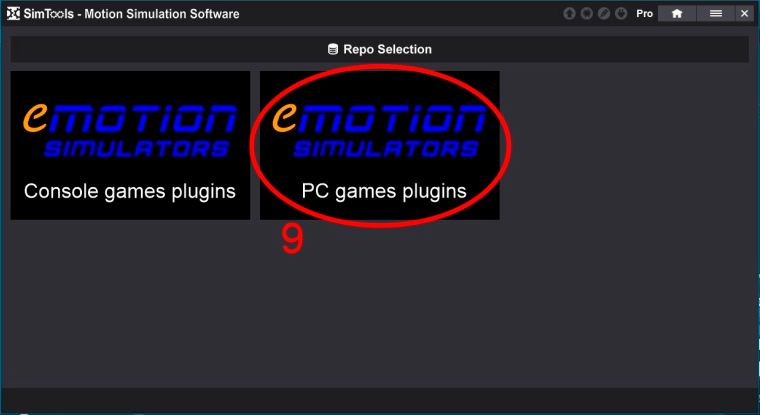
9. Select the PC games plugins repository.
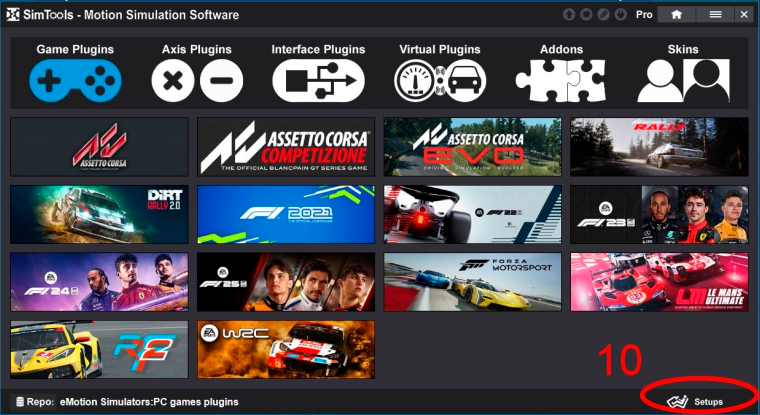
10. Press the setups button.
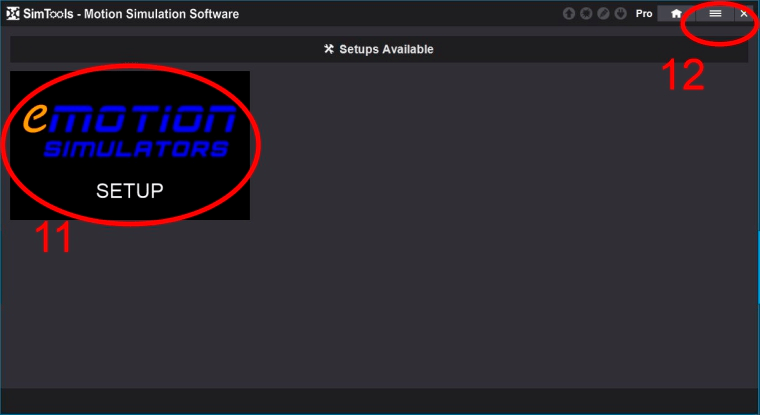
11. Select the setup and let it run. Press skip when prompted to disconnect a USB device.
12. When installed, click on the ‘hamburger’ and select the ‘Interface Setup’ tab
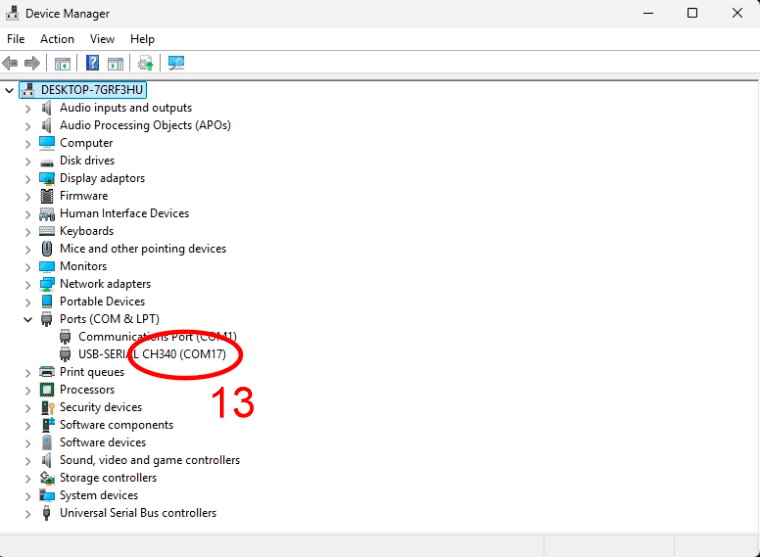
13. Open Device Manager and expand the COM ports section. Make a note of the CH340 COM port number shown in brackets.
If you do not know how to open device manager please see here:
Select the correct ‘Interface’ tab for the details you’ve been sent.
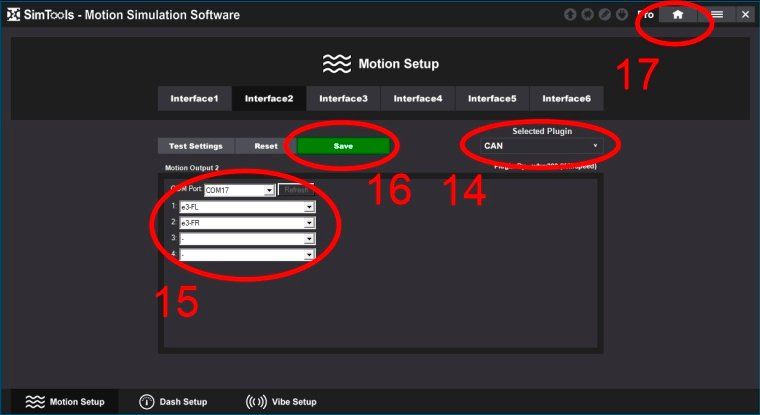
14. Select CAN from the drop down list
15. Select the COM port number from Device Manager in the drop down list. Select the correct axes from the drop downs using the information you have been sent.
16. Press ‘Save’.
You can then see if the settings work by pressing ‘Test Settings’.
IMPORTANT – move sliders SLOWLY and only part way. it is not necessary to move the sliders all the way to the end points.
If necessary, move on to the next interface. Connect the next motion platform to your PC and look in Device Manager again to get the new CH340 COM port number. In SimTools press the ‘Refresh’ button and follow step 15 again.
17. When finished, click the ‘Home’ button.
Using steps 6-9, go back to the eMotion PC or console repository.
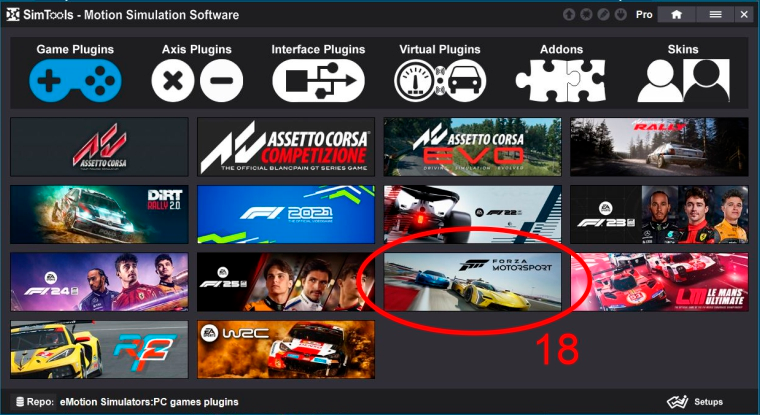
18. Select a game and install it following any instructions required.
If the game you require is not in the repository then please follow the separate ‘Simtools V3 new games instructions’ here:
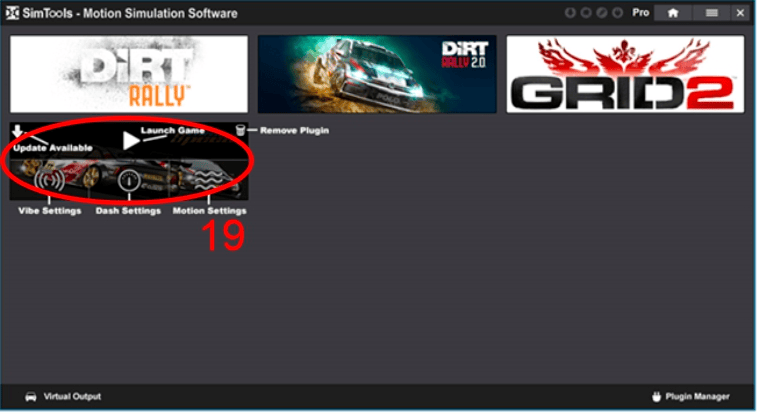
19. Once installed, hovering over the plugin shows the options.
Double-click the arrow to start the game.
If you are using other software that requires the UDP data then some games support UDP relay.
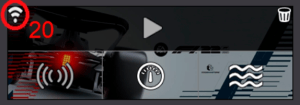
20. Click on the UDP relay icon.
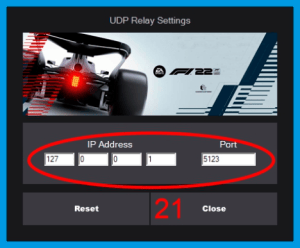
21. Enter the IP address and port for the other software and press close.
You can now set up SimTools to run automatically.
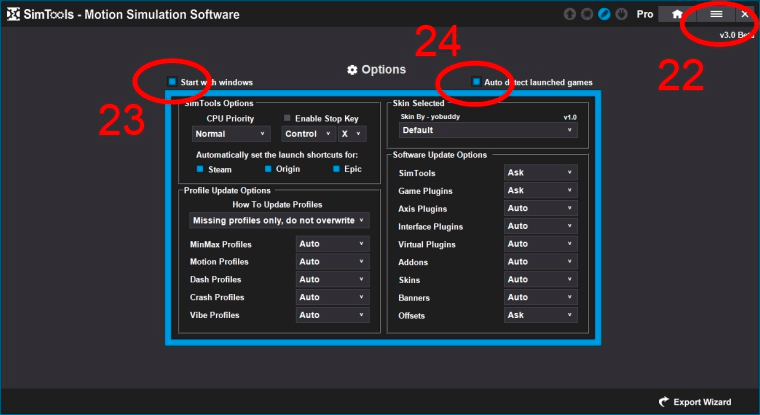
22. Press the hamburger and select the ‘Options’ tab.
23. Enable ‘Start with Windows’
24. Enable ‘Auto detect launched games’
The motion will now start automatically when you launch the game.
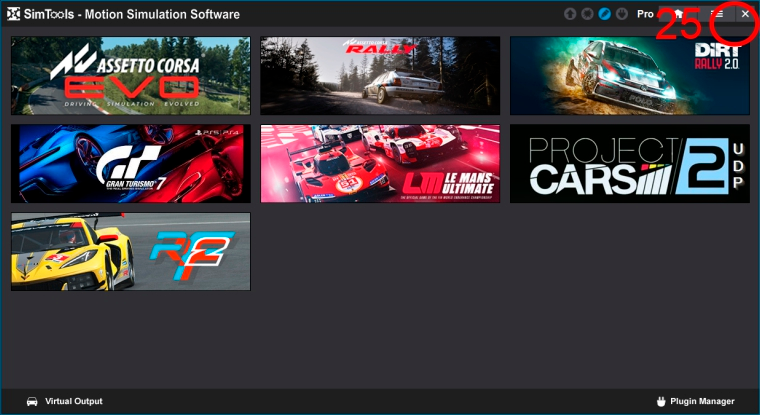
25. Press the ‘X’ will minimise Simtools. It does not close it.
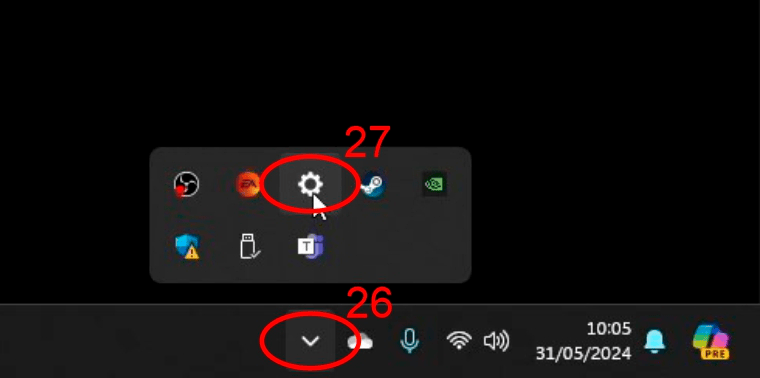
26. To open SimTools again, go to the task bar and click on the arrow.
27. Click on the gear icon to open it. Right click on it and select ‘Exit’ to fully close SimTools.